



Products · in early access
One job, one screen, inside Business Central.
Four task apps for the work Business Central makes slow: receiving, moving stock, selling at the counter and running service jobs. Each one puts a single job on a single screen, with a scan field and one button that finishes it.
The apps are in early access. They’re working builds, and the first teams to use them help decide what comes next. There are no published prices yet. Early-access apps are licensed per company; any custom work we build on top is yours.
middlecut / receive
Your receiving process, simplified.
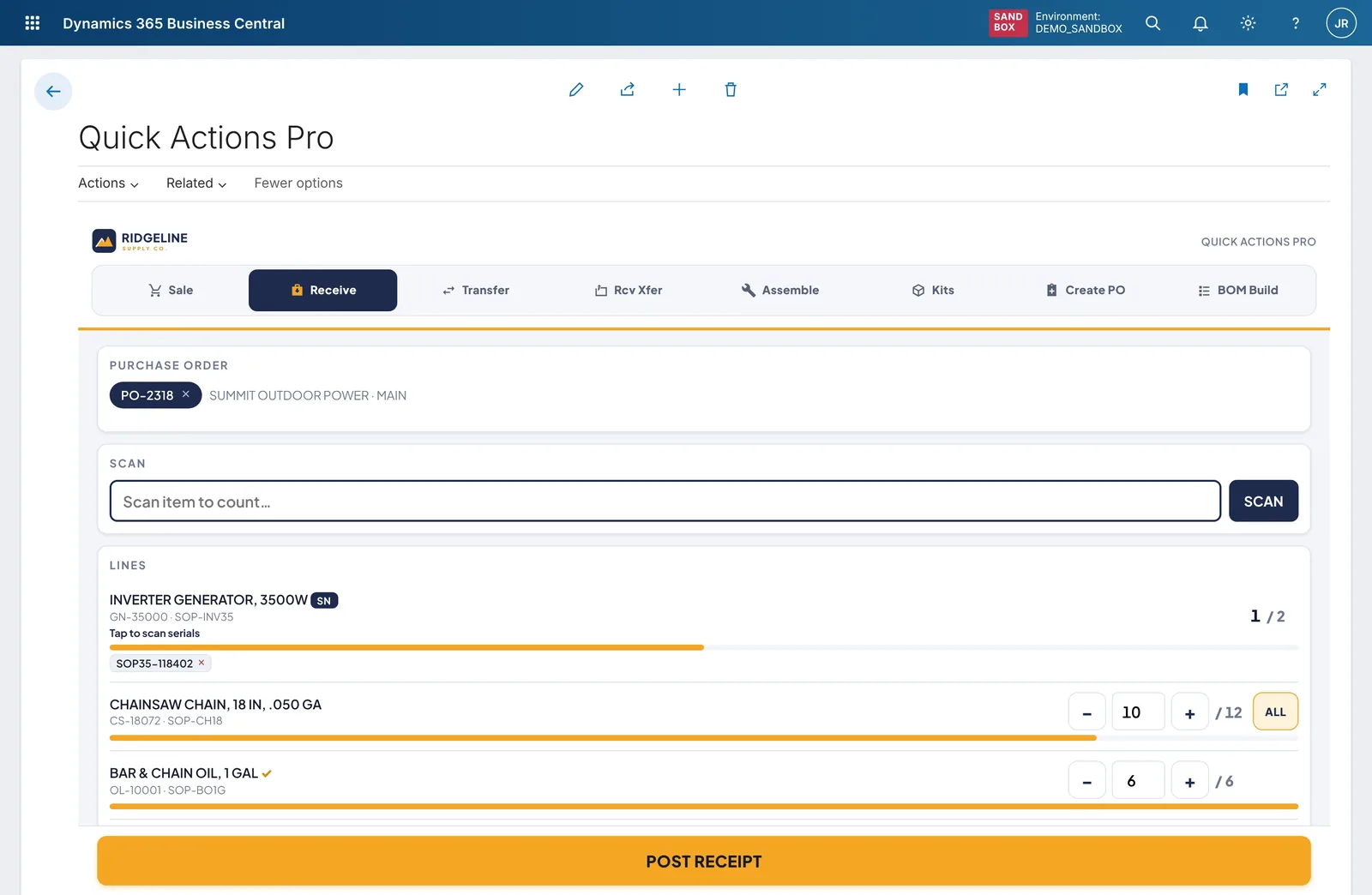
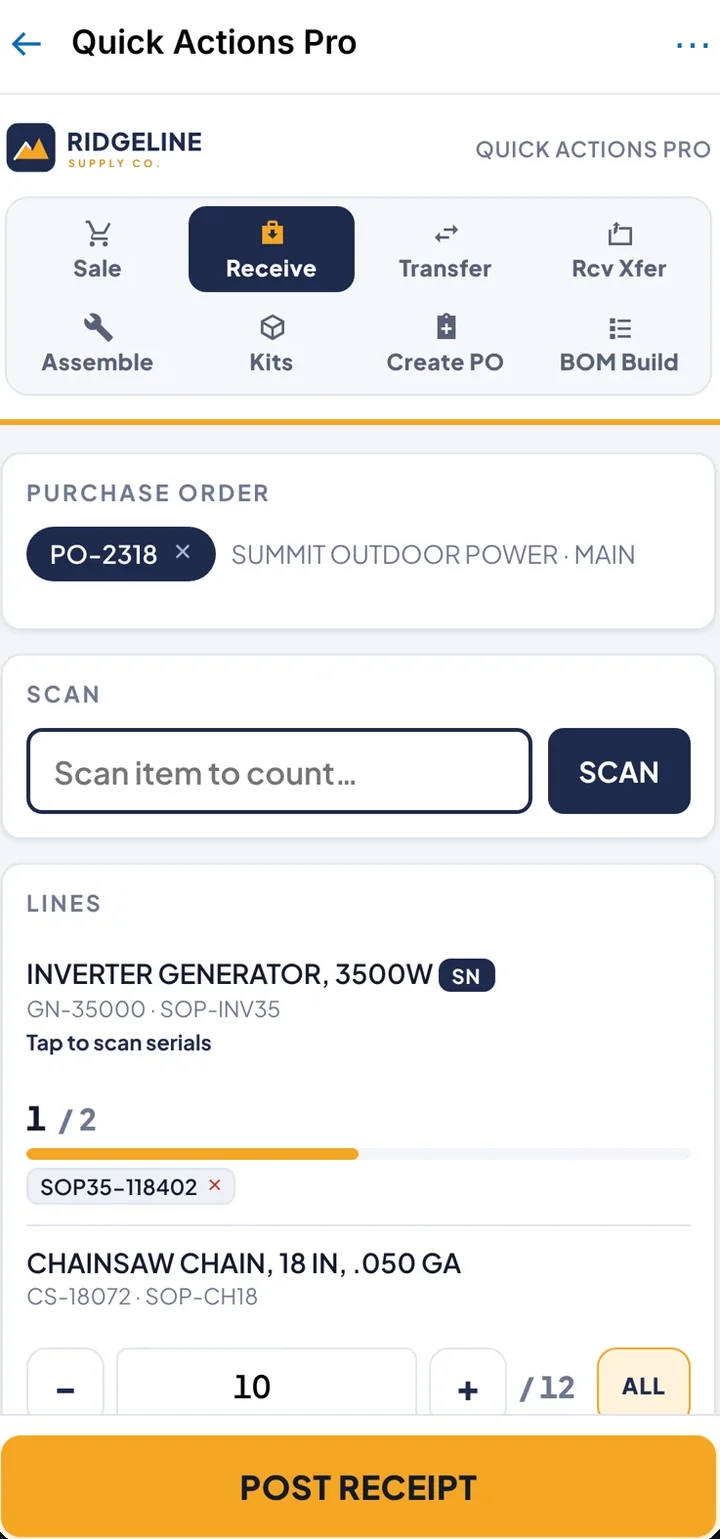
Count what came off the truck against the purchase order and post the receipt, without opening the order itself. Serial numbers are captured as you scan, so the post doesn’t stop with a tracking error.
How it works
Pick the PO.
Choose the open purchase order. Vendor and location come with it.
Scan each item.
Each scan counts against the right line, and a progress bar shows what’s still missing. Serials are captured as you scan and land on their line.
Post receipt.
One Post receipt button. Business Central’s own posting does the rest.
What it replaces in standard Business Central
The purchase order page: editing Qty. to Receive line by line, opening Item Tracking Lines to type in serial numbers, then Post. In our example receipt (three lines, one serial-tracked item) that’s about 14 steps against 3 taps plus one scan per item.
middlecut / transfer
Move stock between locations in one pass.
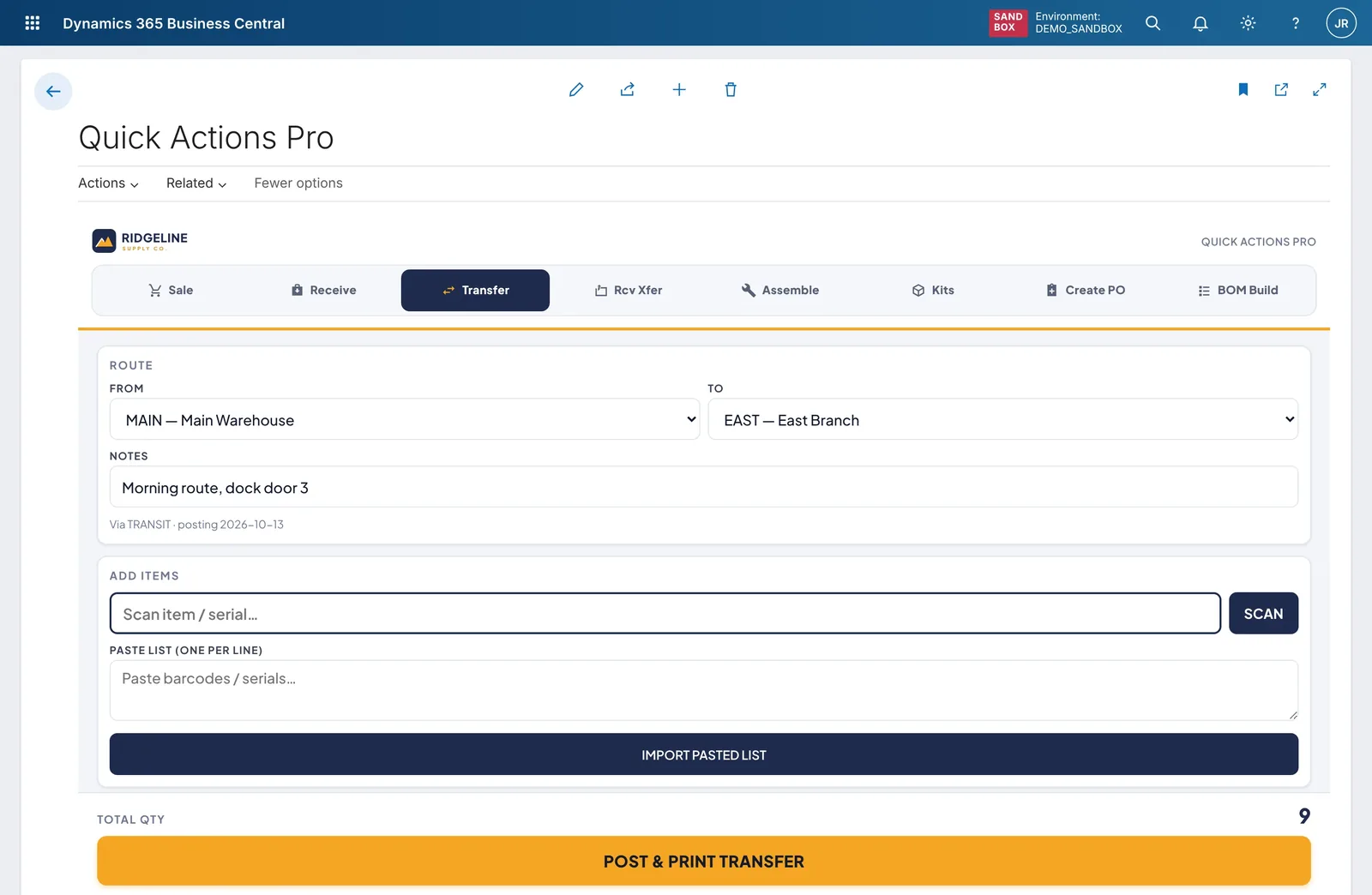
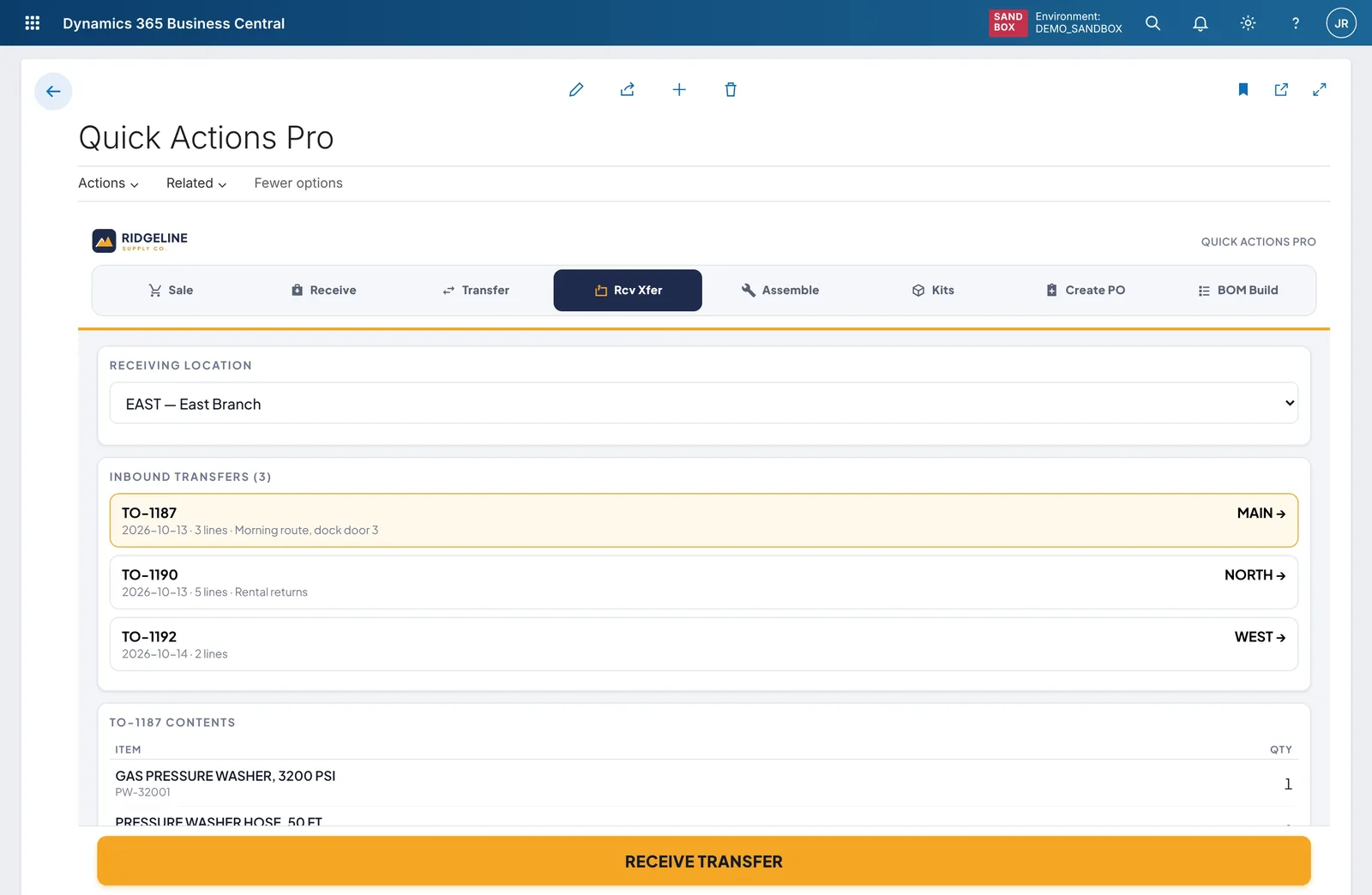
Send stock from one warehouse or branch to another, and receive it at the other end, from two short screens. No transfer order header to fill in, no separate ship and receive pages to find.
How it works
Pick from and to.
Choose the two locations and add a note for the run, such as “Morning route, dock door 3”.
Scan or paste.
Scan items and serials one by one, or paste a list of barcodes and import it in one go.
Post and print.
One button posts the transfer and prints the paperwork that travels with it.
Receive at the other end.
The receiving branch sees its inbound transfers, taps one, checks the contents and receives it.
What it replaces in standard Business Central
Transfer orders: a header, lines, then shipping and receiving, spread across several pages. Fine for a planned replenishment, slow for the daily van run between branches.
middlecut / pos
From the counter to a sales order on one screen.
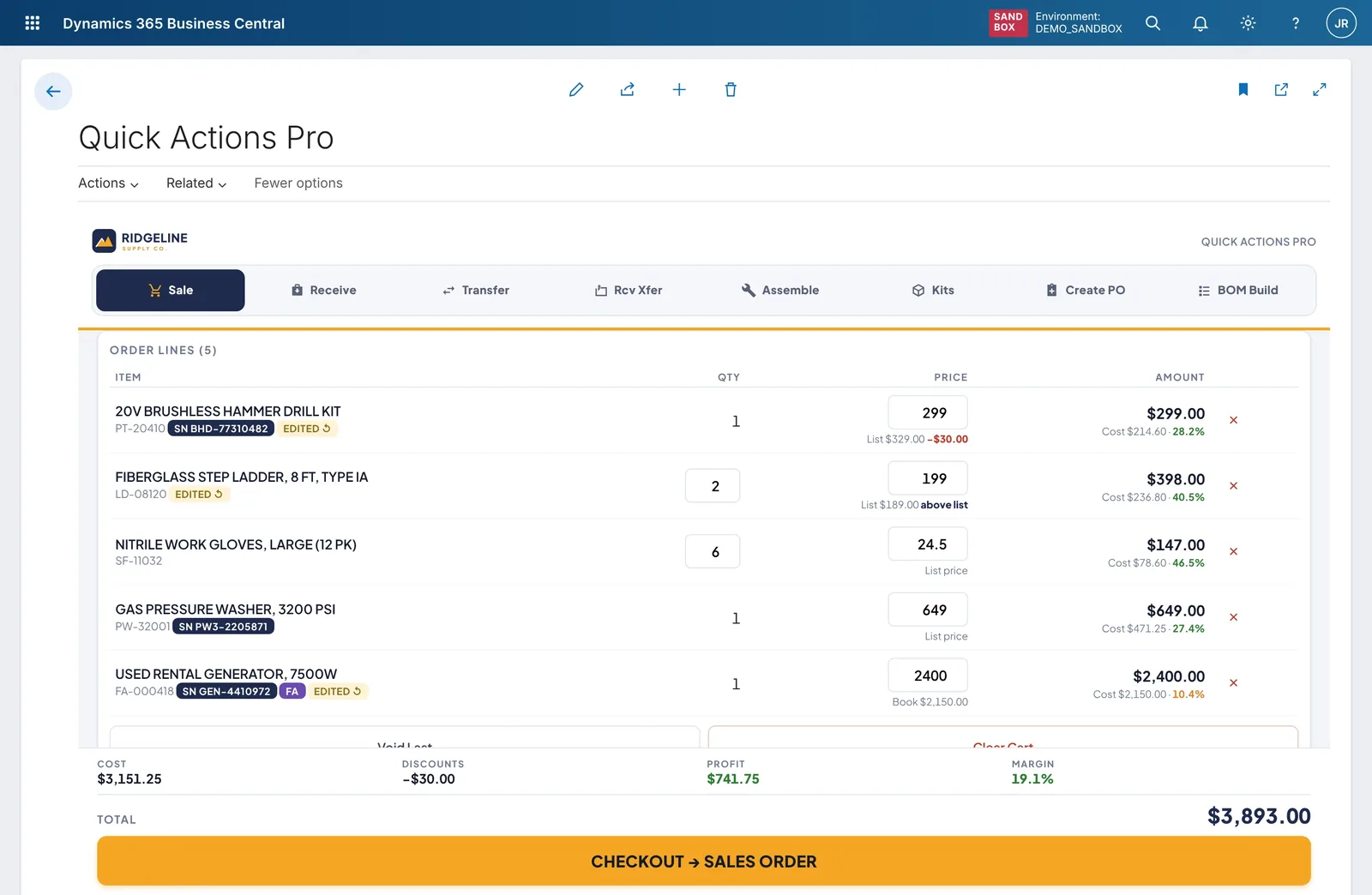
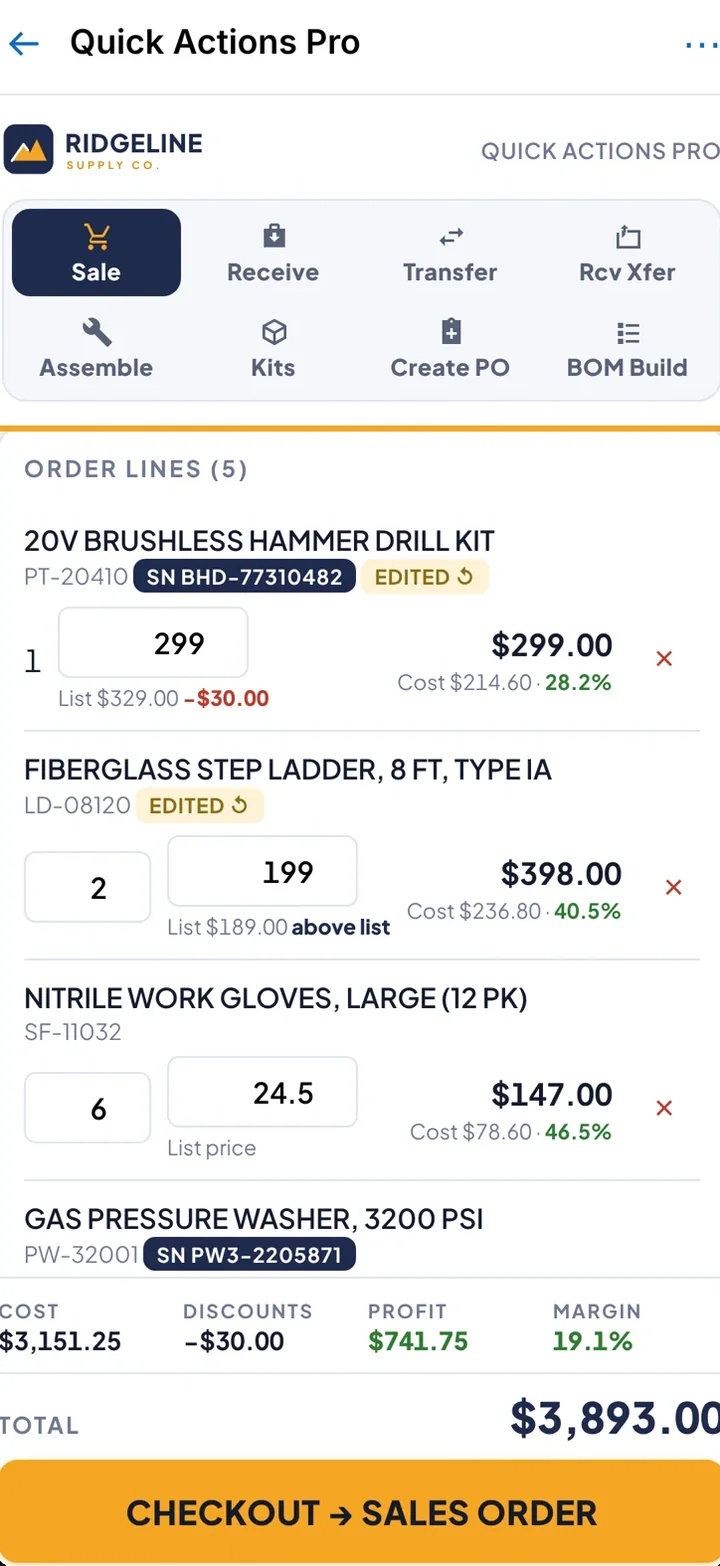
A counter screen for trade and parts counters that sell to account customers. Scan items into the cart, adjust prices and see cost and margin on every line before the customer leaves.
How it works
Scan into the cart.
Items and serial numbers go straight onto order lines.
Price it.
Change a price and the line shows the list price, the discount and the margin as you type.
Check the totals.
Cost, discounts, profit and margin for the whole order sit above the total.
Check out.
One button creates the sales order in Business Central.
What it replaces in standard Business Central
Entering a sales order on the standard page: customer, lines, item tracking for serials, then statistics to see the margin. On a busy counter, that’s the queue.
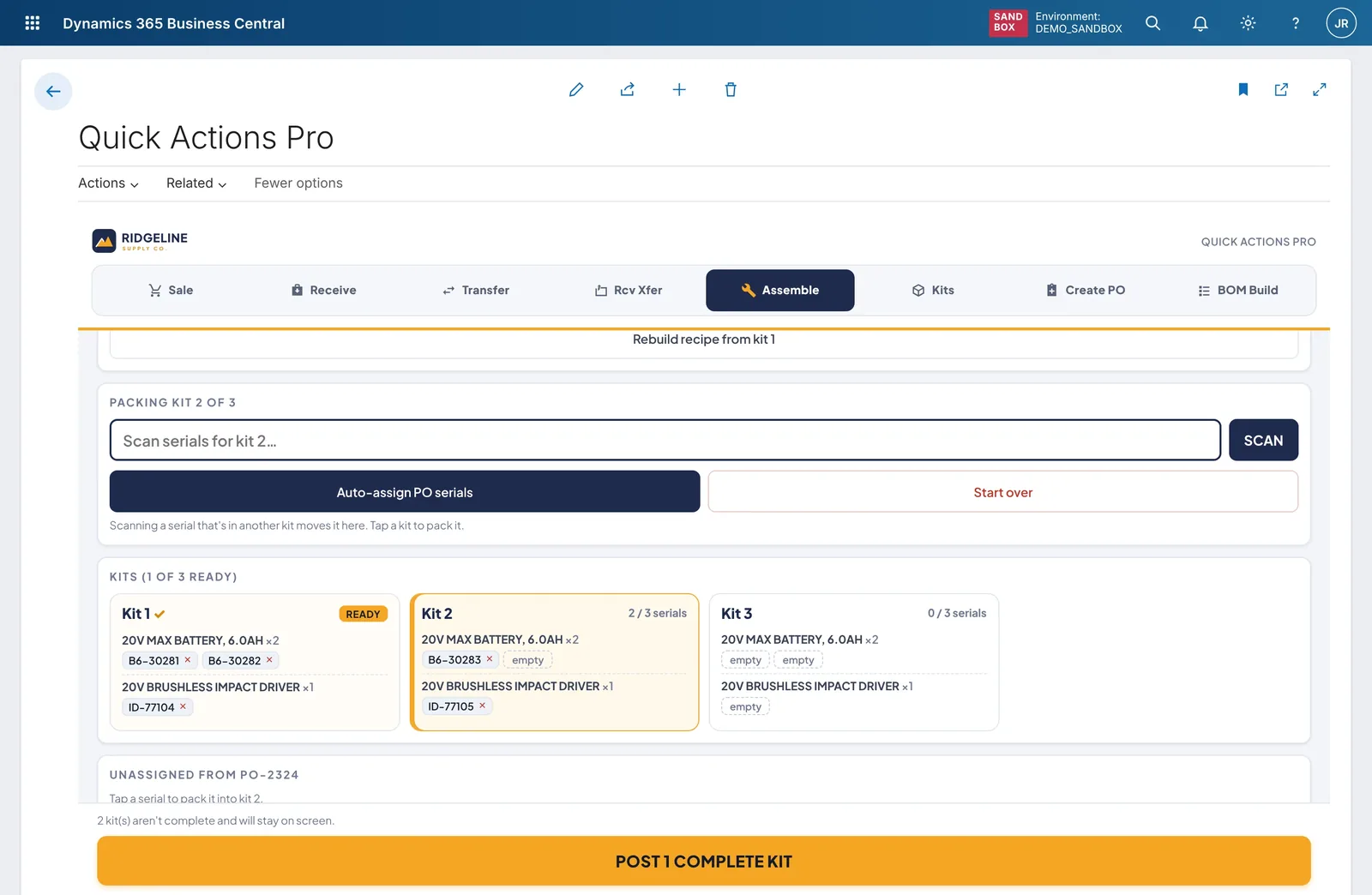
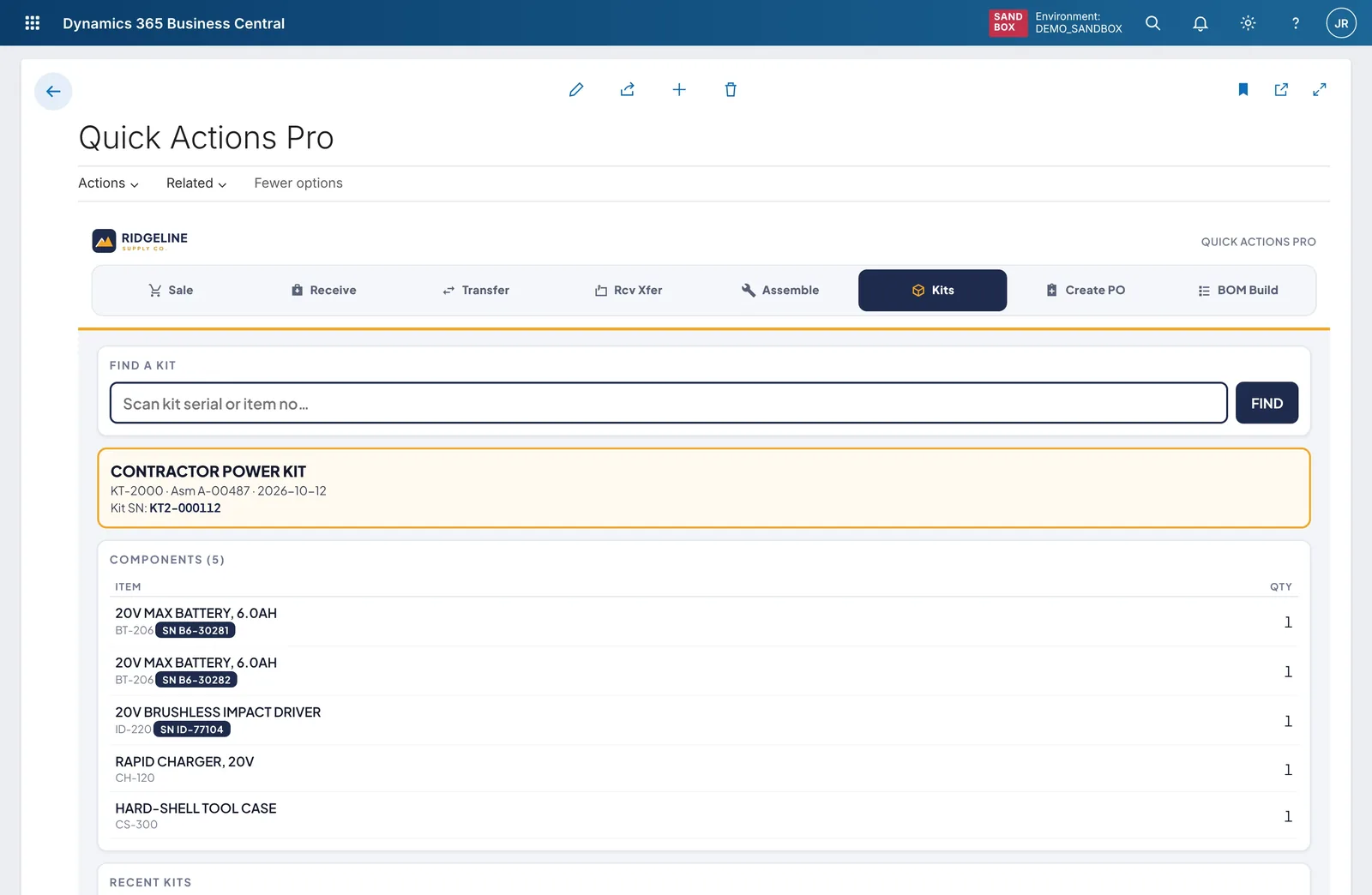
Related counter tools
Two screens that sit next to the sale on the same counter.
middlecut / service
Built around the technician and the customer.
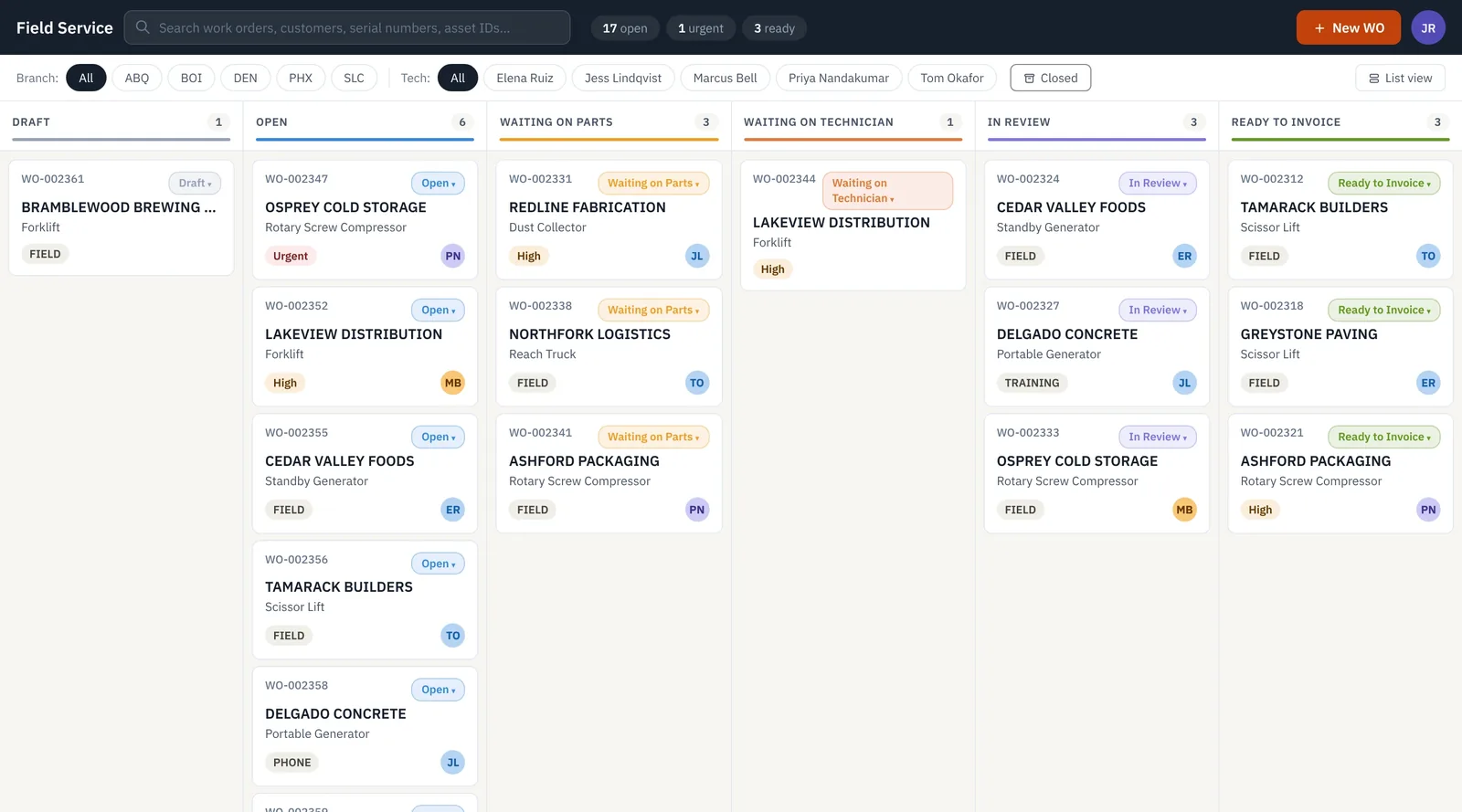
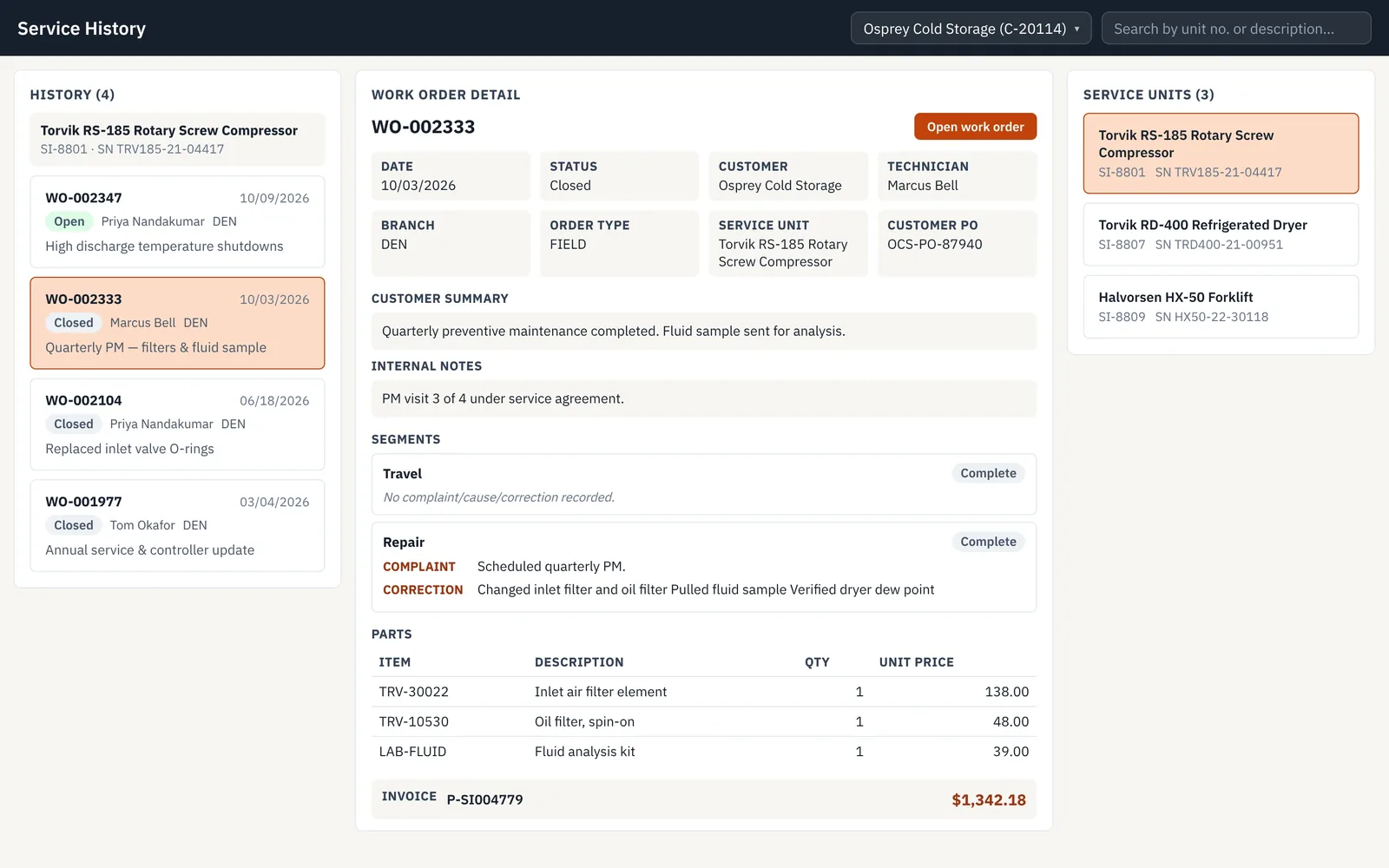
A service desk for companies that repair and maintain equipment. Office staff see every work order on one board. Technicians fill in one guided screen. Parts and unit history are a tap away, and the invoice reads the way the customer thinks about the job.
How it works
See the board.
Work orders sit in columns from Draft to Ready to invoice, filtered by branch or technician.
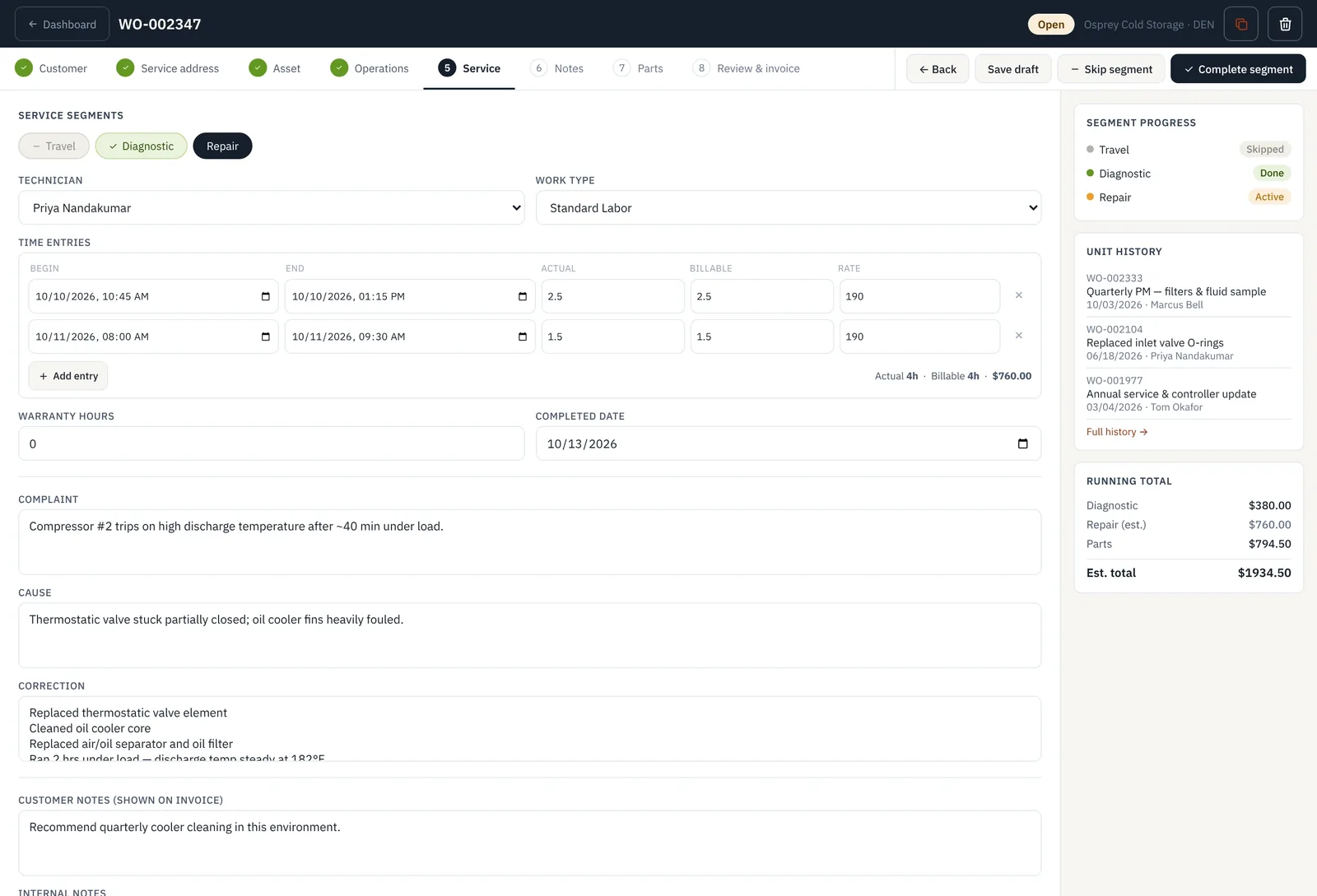
Work the order.
One stepped workspace: customer, asset, segments such as diagnostic and repair, time entries, and complaint, cause and correction.
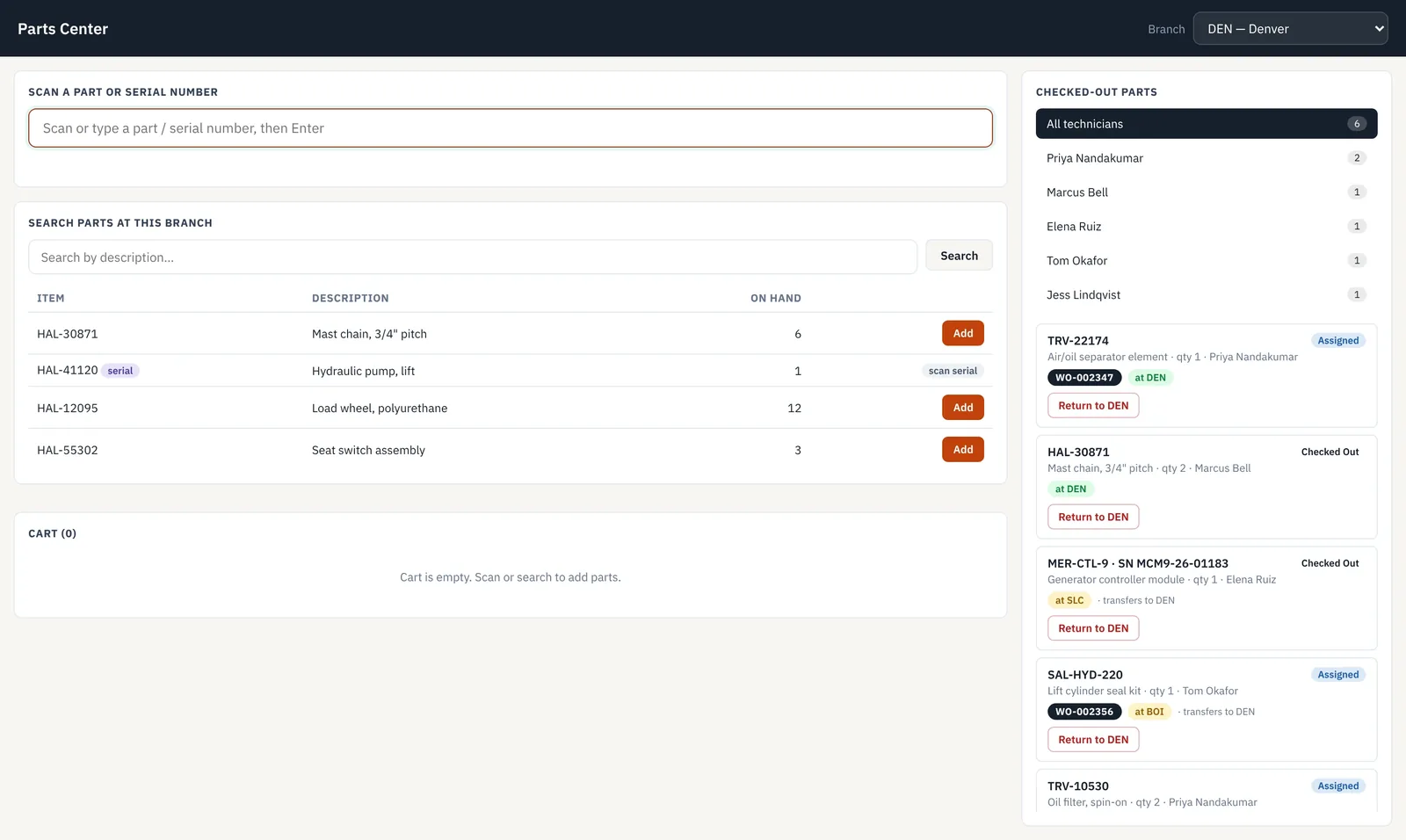
Issue parts.
Scan parts out to a technician and back to the branch, so you know which parts are with whom.
Review and invoice.
A running total updates as you go. The invoice lists each segment with its labor and parts.
What it replaces in standard Business Central
Service order lists and cards: no board showing where each job stands, and no single screen for the technician to work through.
Early access
Help shape the apps around your process.
The four apps are working builds, not finished products with a price list. Early access is for Business Central teams who want one of them and will tell us what their people need from it.
Show us the job.
Walk us through how your team receives, transfers, sells or services today.
See it running.
We run the app on demo data and show where it would differ for you.
Agree on the fit.
If it suits, we talk scope and price for your setup. If it doesn’t, you’ve lost nothing but the call.
One family
Learn one app and the next feels familiar.
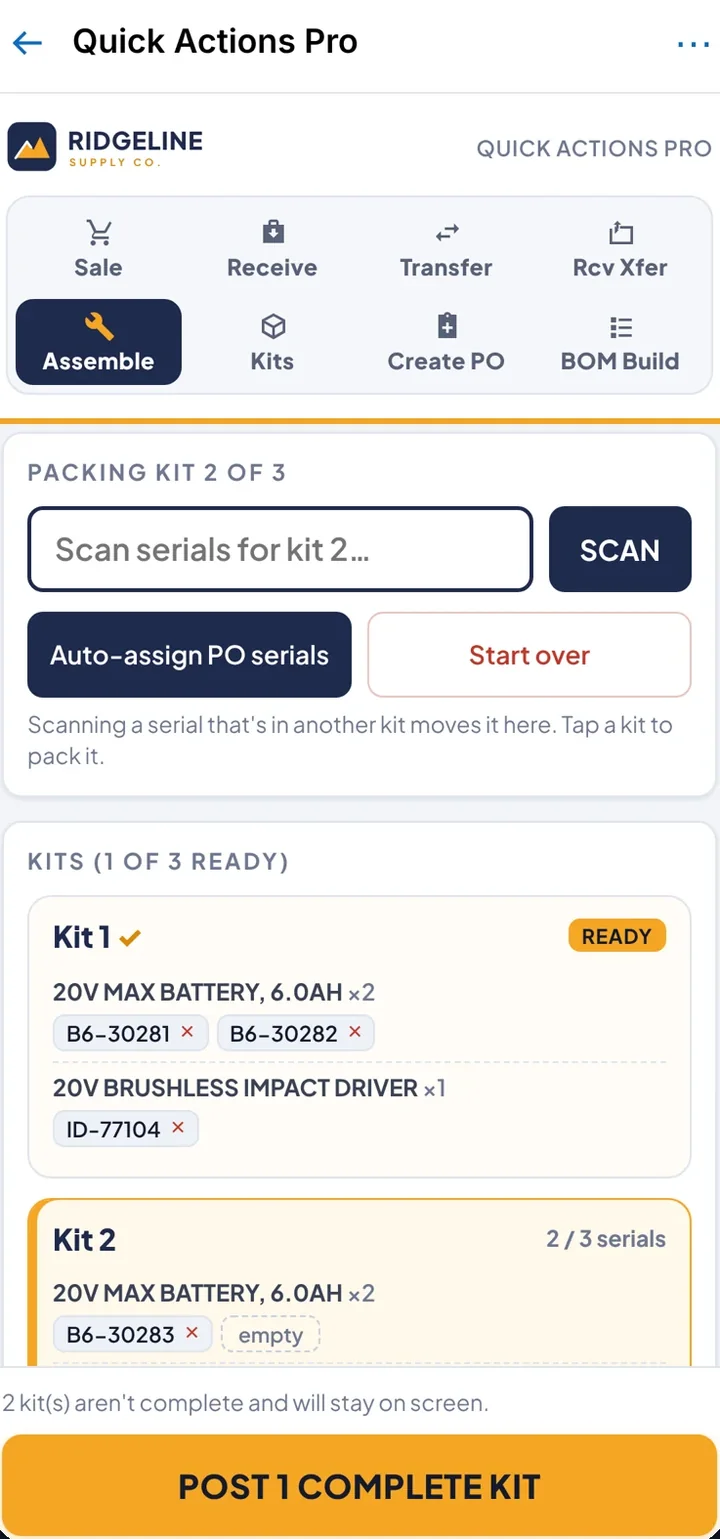
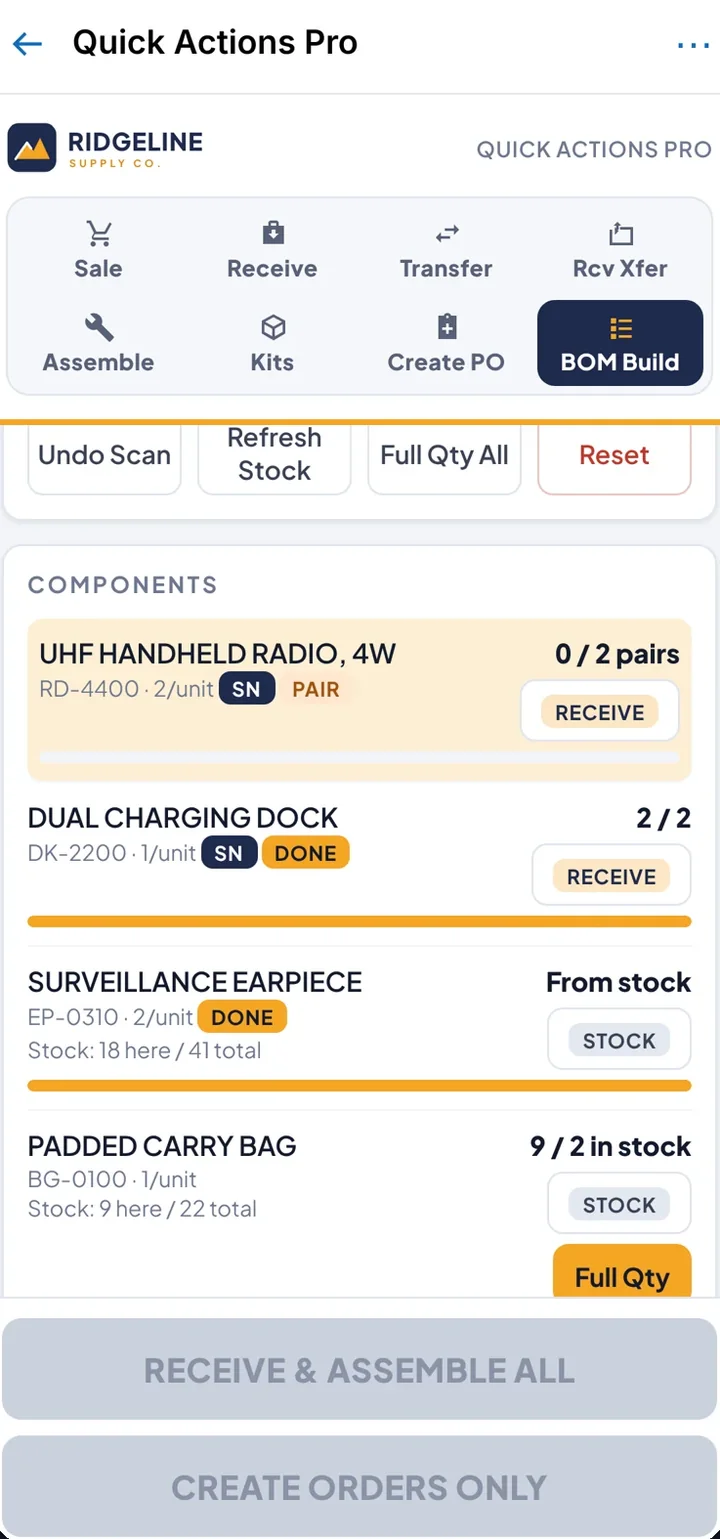
- Same look. The same layout, type and main button in the same place, whichever job you open.
- Scan first. Jobs start from a scan field, so a barcode scanner does the typing and a serial lands on the right line.
- Desktop and phone. The same screen adapts to a counter monitor, a tablet on the dock or a phone in the yard.
Inside Business Central, not beside it. Each app is an AL extension (AL is the language Business Central is written in) with a control add-in, so it uses the logins, permissions, data and licenses you already have. How control add-ins work
The apps need a connection, the same as Business Central itself. They run in the Business Central web client and mobile app, and there is no offline mode. On the dock or in the yard, that means Wi-Fi or mobile signal.
Free Business Central UX review
Send us the screen your team hates most.
In 30 minutes we count the steps your team takes today and sketch the same task as one screen, on desktop and phone. You keep the written summary. No slides, no obligation.