



Custom screens for Business Central
Make Business Central easier to work in.
Keep everything it can do. Cut the busywork: one screen per task, on desktop or phone.
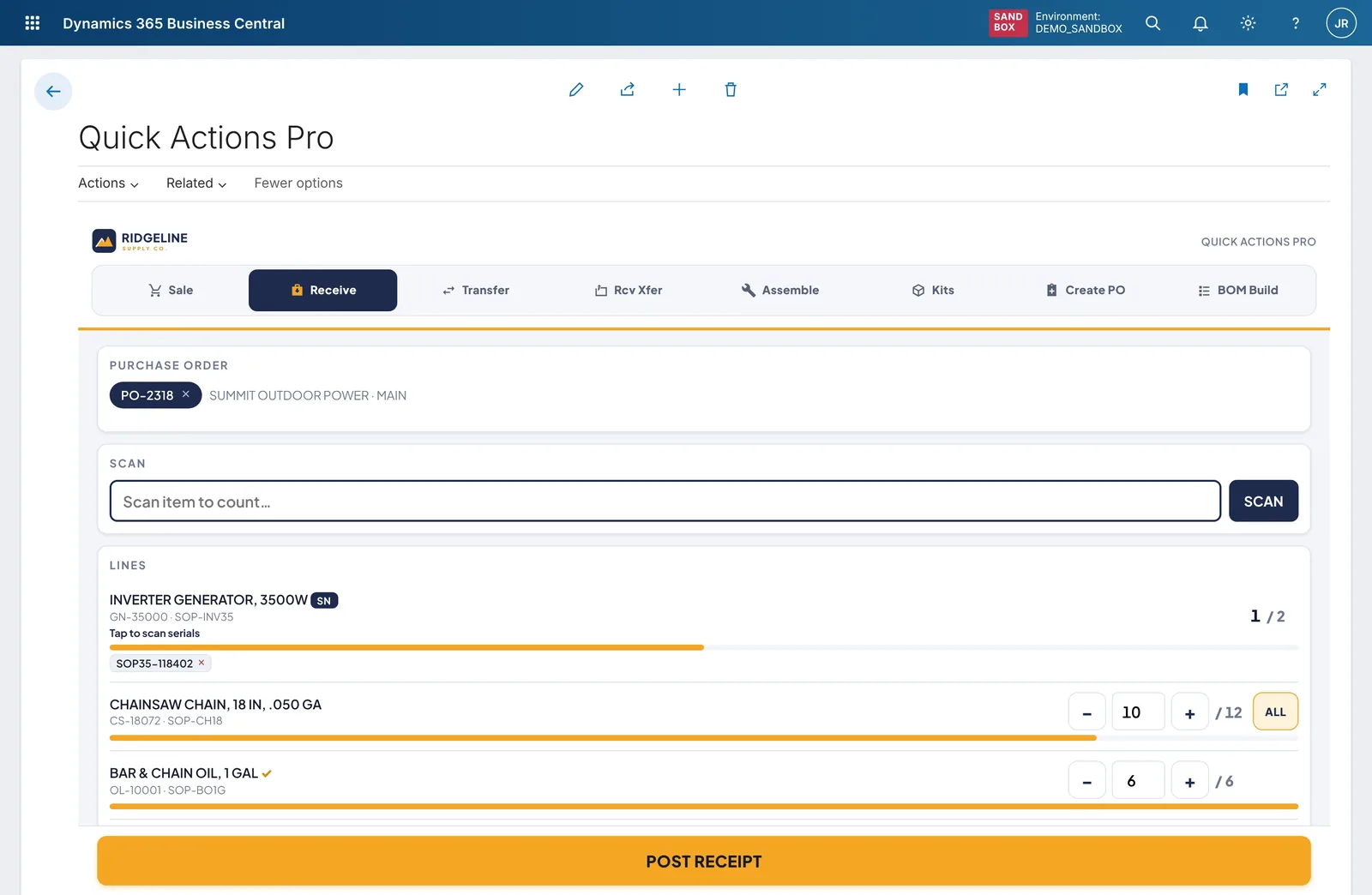
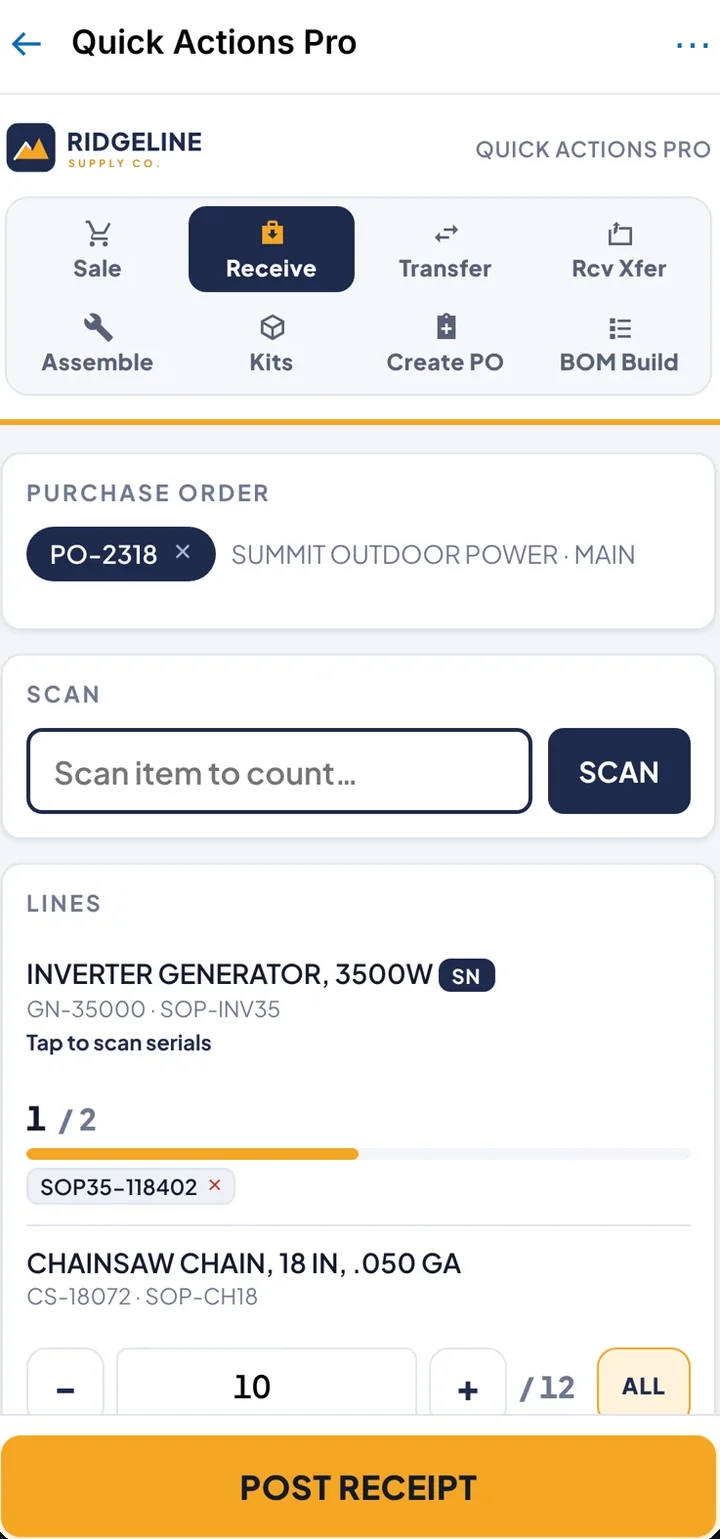
Receiving a purchase order with three lines and one serial-tracked item. Drag the divider to compare. The standard page is recreated for illustration; the Middlecut screen is a real build running inside Business Central. Step counts are for this example task and vary with setup.
See the 14 steps
Standard Business Central
- Search for Purchase Orders
- Open PO-2318
- Set Qty. to Receive on line 1
- Set it on line 2
- Set it on line 3
- Select the generator line
- Open the Line menu
- Related › Item Tracking Lines
- Enter serial number 1
- Enter serial number 2
- Close Item Tracking Lines
- Choose Post…
- Choose Receive
- Confirm with OK
Middlecut
- Tap Receive and pick PO-2318
- Scan each item (serial numbers land on the right line as you scan)
- Tap Post receipt
Business Central partner? We build add-ins under your brand.
What Business Central users tell us
A powerful system with screens that slow people down.
517
votes on Microsoft’s own ideas portal for one small thing: keeping the cursor in the right field so barcode scanners work.
Source: Business Central Ideas
“Companion”
is how Microsoft describes its own Business Central phone app in replies to reviews. It was not built as the main tool for the warehouse or the field.
Source: Microsoft replies to App Store reviews
$295/hr
is what some US partners publish as their hourly rate for Business Central work. At that price, many teams live with clumsy pages instead of fixing them.
Source: published partner rate cards, e.g. Innovia Consulting, 2026
“Really BAD, but slightly more convenient than web.”
The problem is rarely a missing feature. It’s the screen around the feature, built for every company, so it fits nobody’s dock, counter or service van particularly well.
How it works
Inside Business Central, not beside it.
Our screens are control add-ins: modern HTML screens that live on a Business Central page and post through Business Central’s own code. Your team opens them where they already work.
-
Same login, same permissions
No second app to sign in to. Users see exactly what their Business Central permissions allow, and every posting lands in the same ledgers and audit trail.
-
No extra licenses
A control add-in ships inside an ordinary extension. There’s no per-user Power Apps plan to buy and no premium connector to manage.
-
No sync to break
Nothing is copied out to another system. The screen reads and writes live Business Central data, so there’s one version of the truth.
The middlecut family · early access
One screen for each job that slows your team down.
Four task apps in early access, each with one clear job. They share one look and the same simple pattern, so the second app feels familiar.
middlecut / receive
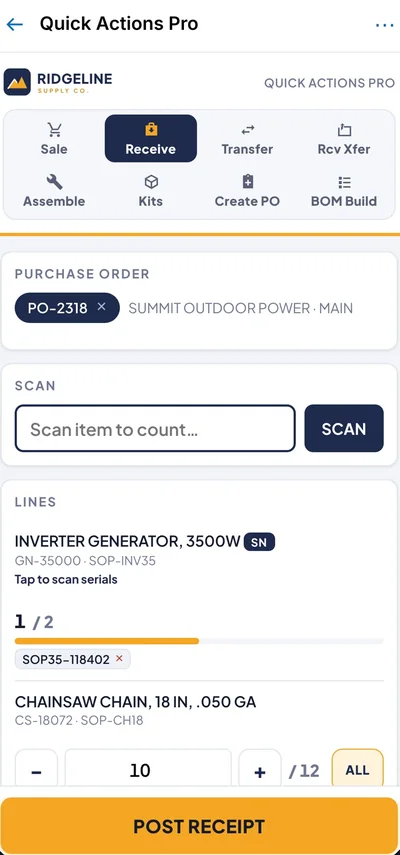
Scan, match and post inbound goods. Serial numbers are captured as you scan.
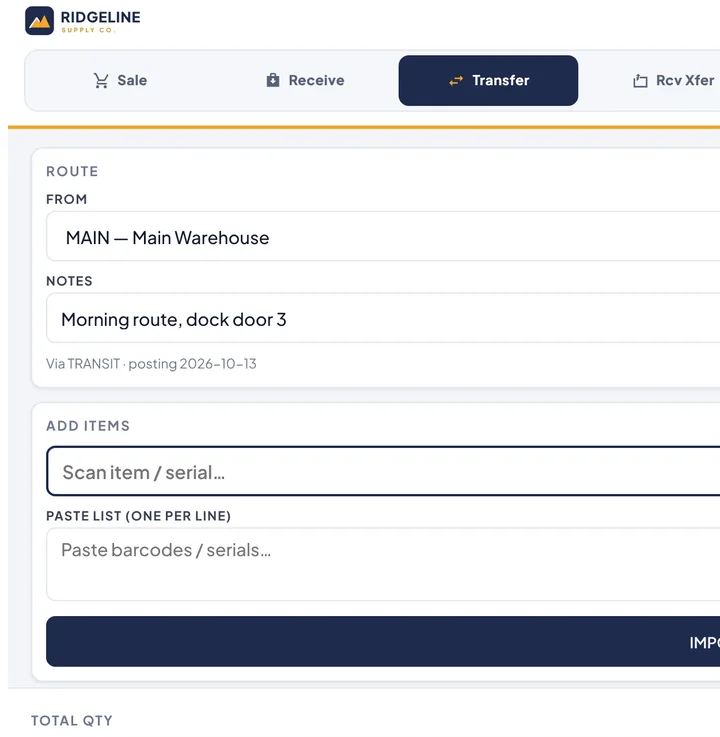
middlecut / transfer
Move stock between locations: pick a route, scan or paste a list, post and print.
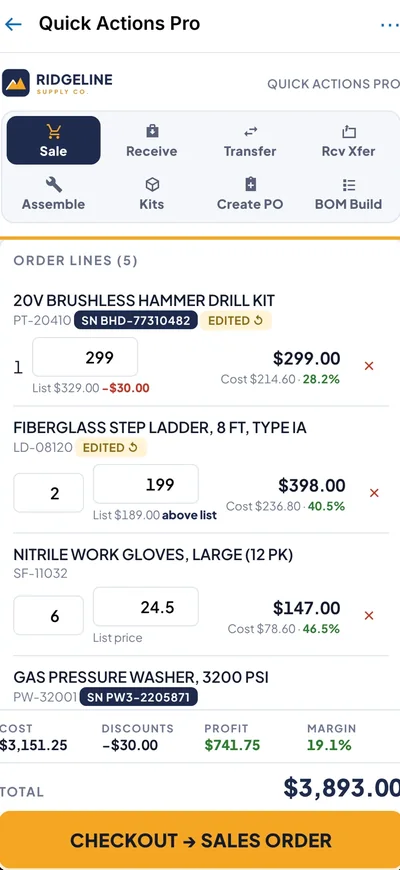
middlecut / pos
A clean counter-to-order workflow, with cost and margin visible on every line.
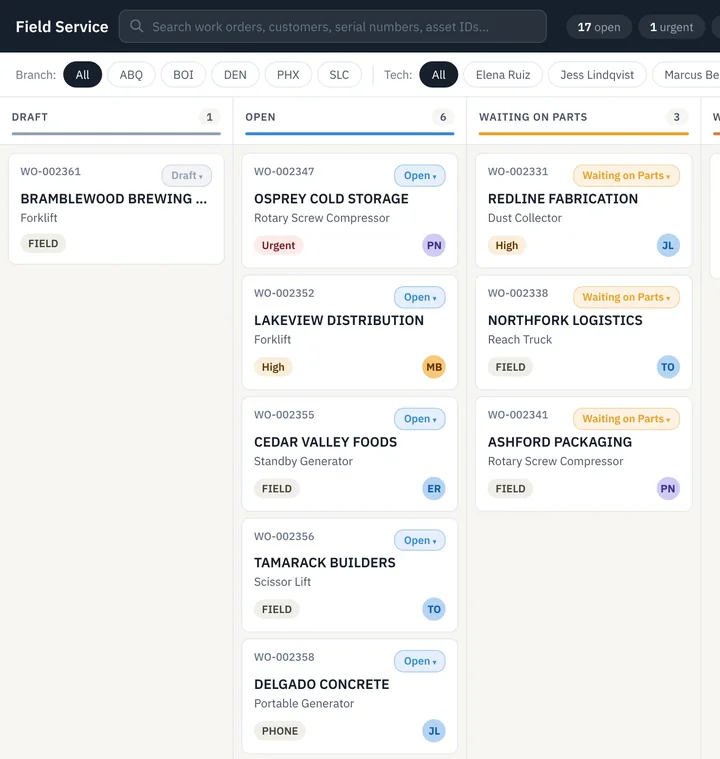
middlecut / service
Built around the technician and the customer, from dispatch board to invoice.
Custom work
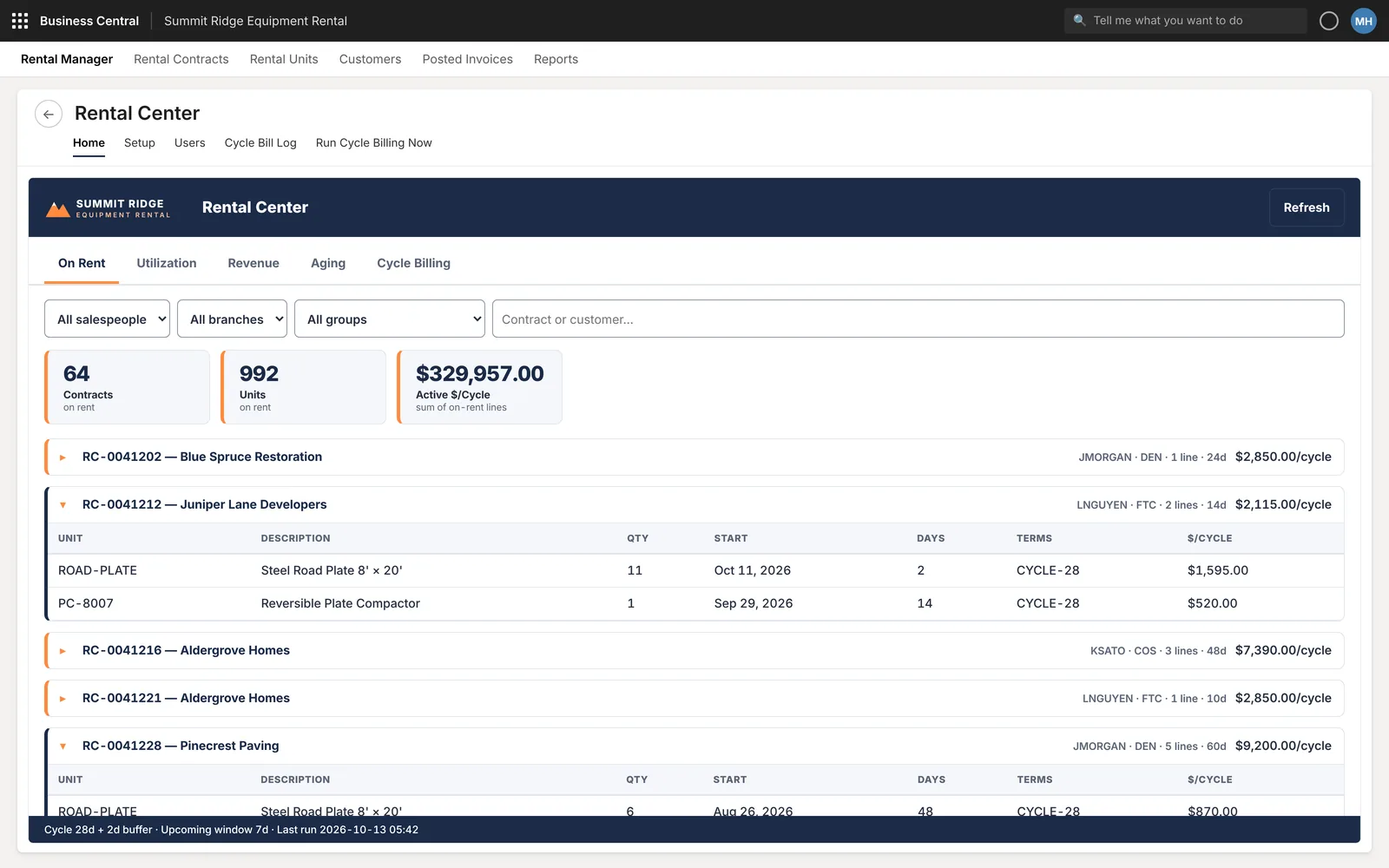
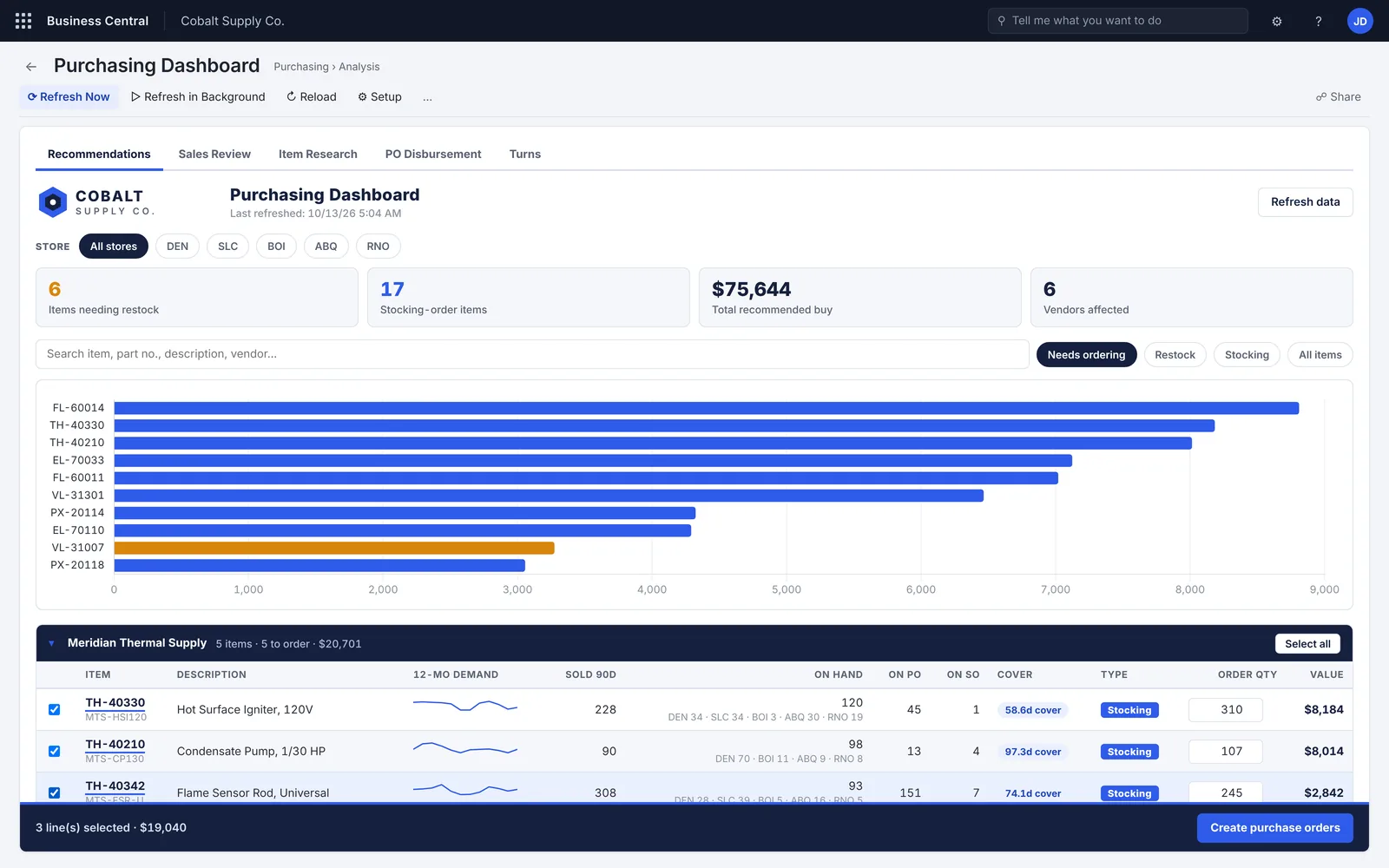
When the job is yours alone, we build it to fit.
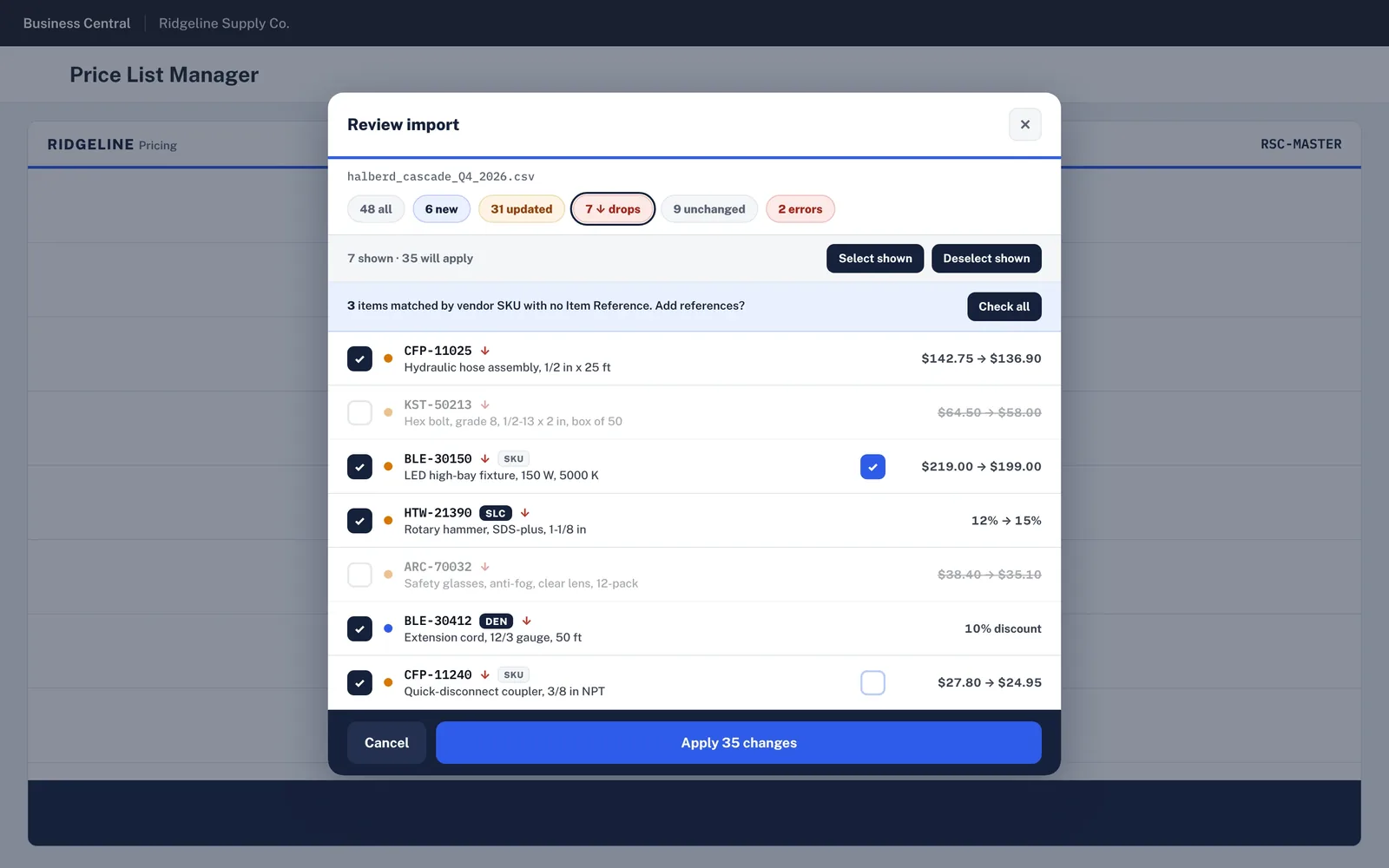
Dashboards that answer the question you ask every morning, price tools that replace the spreadsheet, and boards your dispatchers can actually read. Shown here with demo data.
Support & upgrades
Built to survive each release wave.
Microsoft updates Business Central twice a year, and an extension that blocks an update can be uninstalled. We test our work against each release before it reaches you, so updates are routine instead of risky.
Preview
Microsoft publishes the next release early. We build and test against it.
We fix first
We fix anything that would break while the release is still in preview, so a compatible version is ready before your grace period starts.
Update window
Your environment updates on schedule. Your screens keep working.
Every wave
The same routine, twice a year, written into your support plan.
How we work
Keep what matters. Cut the rest.
In distillation, the middle cut is the part worth keeping. We apply the same judgment to your screens.
Listen
We watch how your people actually do the task, at the dock, the counter or in the van, and count the steps.
Refine
We remove friction, not capability. Everything Business Central does stays; the clicks around it go.
Deliver
We ship the screen inside Business Central, train the team on the screen they’ll use, and support it through every update.
Questions
What people ask before they start.
Work at a Business Central partner?
We also build for partners who need extra hands or JavaScript skills, under your brand or ours.
Work with us as a partnerDo we have to replace our Business Central partner?
No. We work alongside whoever supports your Business Central today, or directly with your team if you manage it yourselves.
Does it work in the Business Central phone app?
Yes. Control add-ins run in the web client and in the Business Central apps on phones and tablets, and we design each screen for touch and small screens from the start. Like Business Central itself, they need a connection.
Will Microsoft’s updates break it?
Updates are the reason our support plans exist. We test against each preview release, and a compatible version of everything we built is ready before your grace period starts. You won’t find out the hard way.
Who owns the code?
You do. You get the full source, documentation and the right to have anyone maintain it. No lock-in.
How long does a screen take to build?
A single task screen usually takes a few weeks from the first workshop to go-live. Every build starts with a discovery workshop and ends with a fixed quote.
What does the free UX review involve?
A 30-minute call where you show us the task your team finds slowest. We count the steps, sketch a simpler screen, and send you a short written summary. There’s no obligation.
Free Business Central UX review
Send us the screen your team hates most.
In 30 minutes we count the steps your team takes today and sketch the same task as one screen, on desktop and phone. You keep the written summary. No slides, no obligation.